
 Home
Home
How to Create an Item for Job Posting Package?
To create an item for job packages, follow the steps below.
1. Navigate to Items.
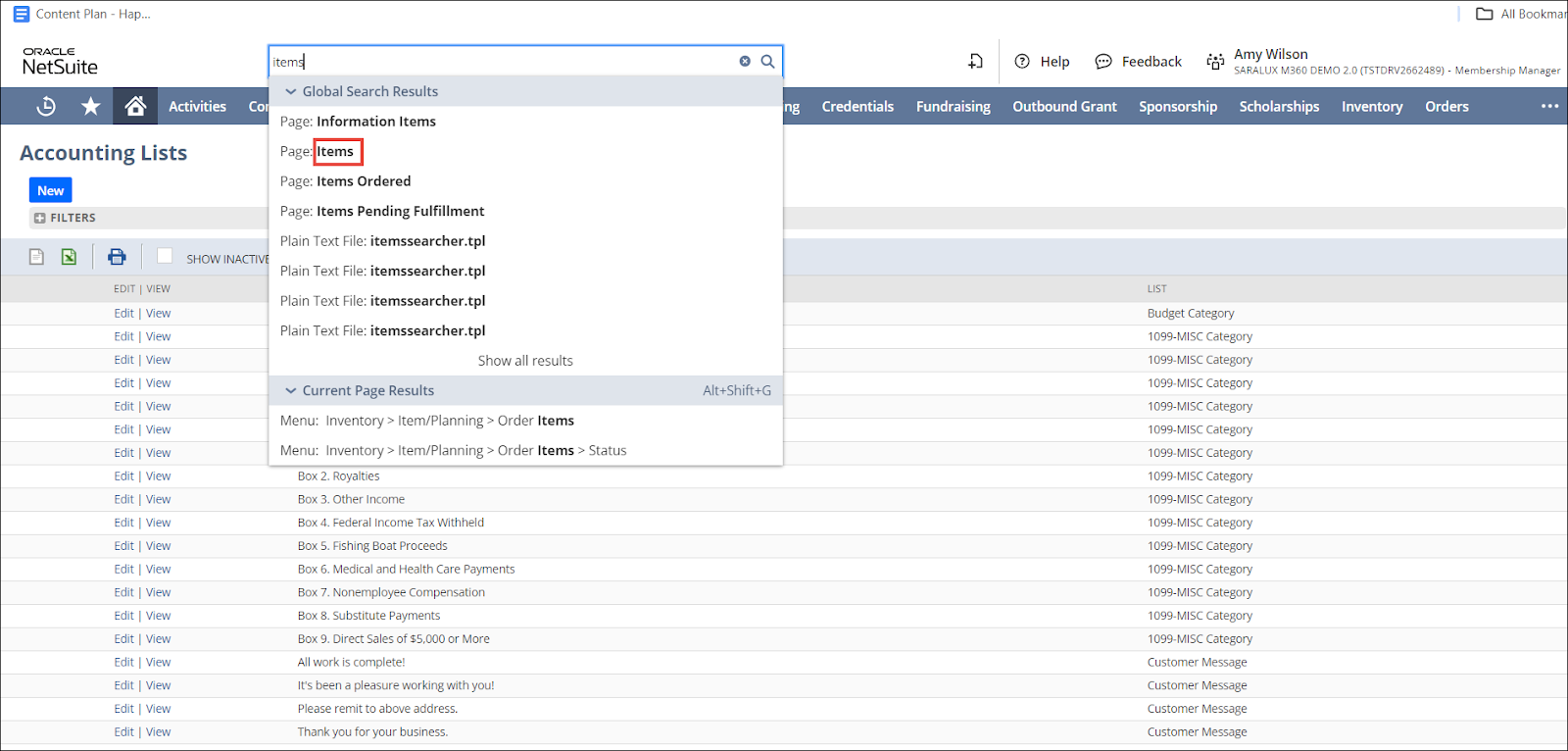
The Items page is displayed.
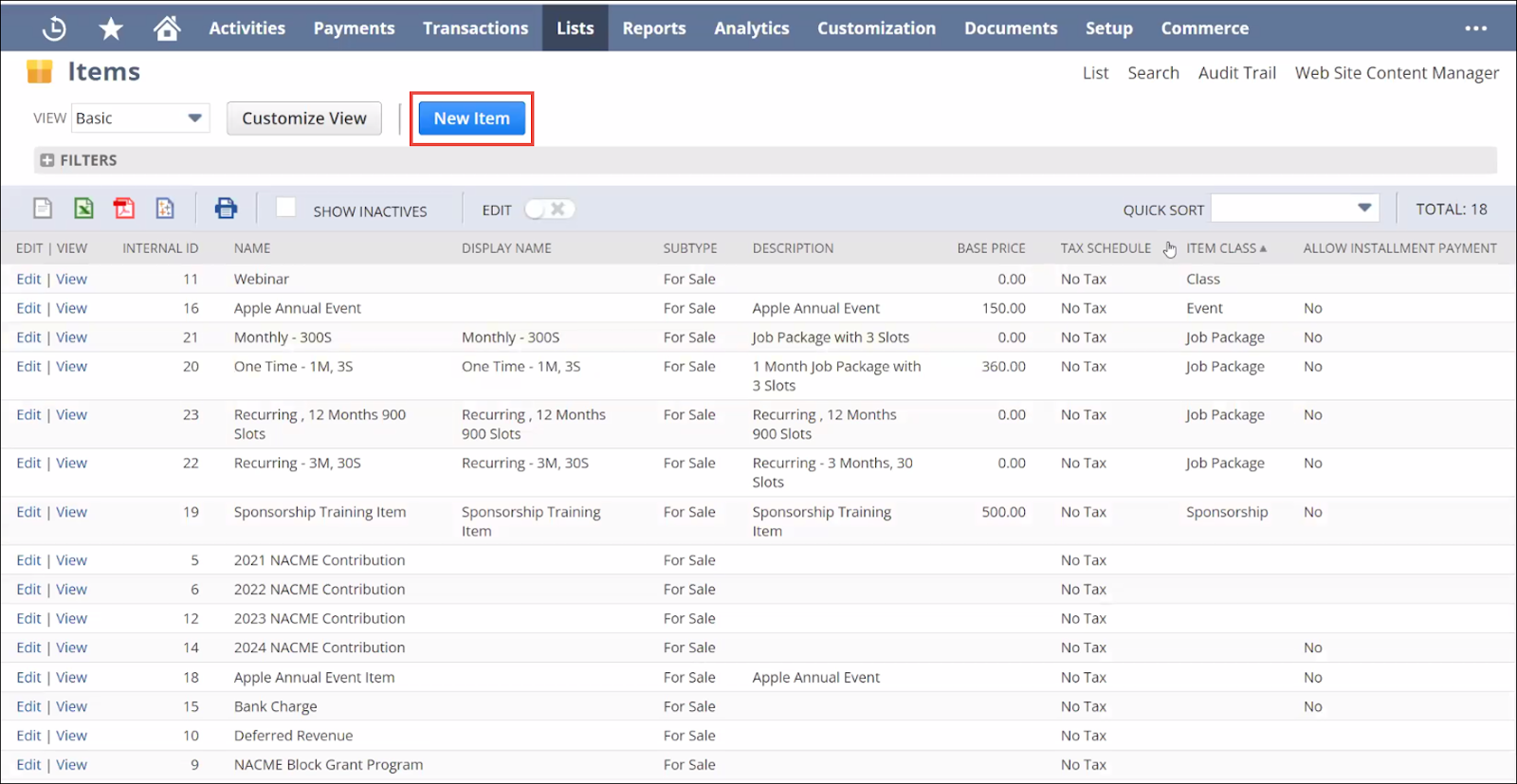
2. Click New Item.
The New Item page is displayed.
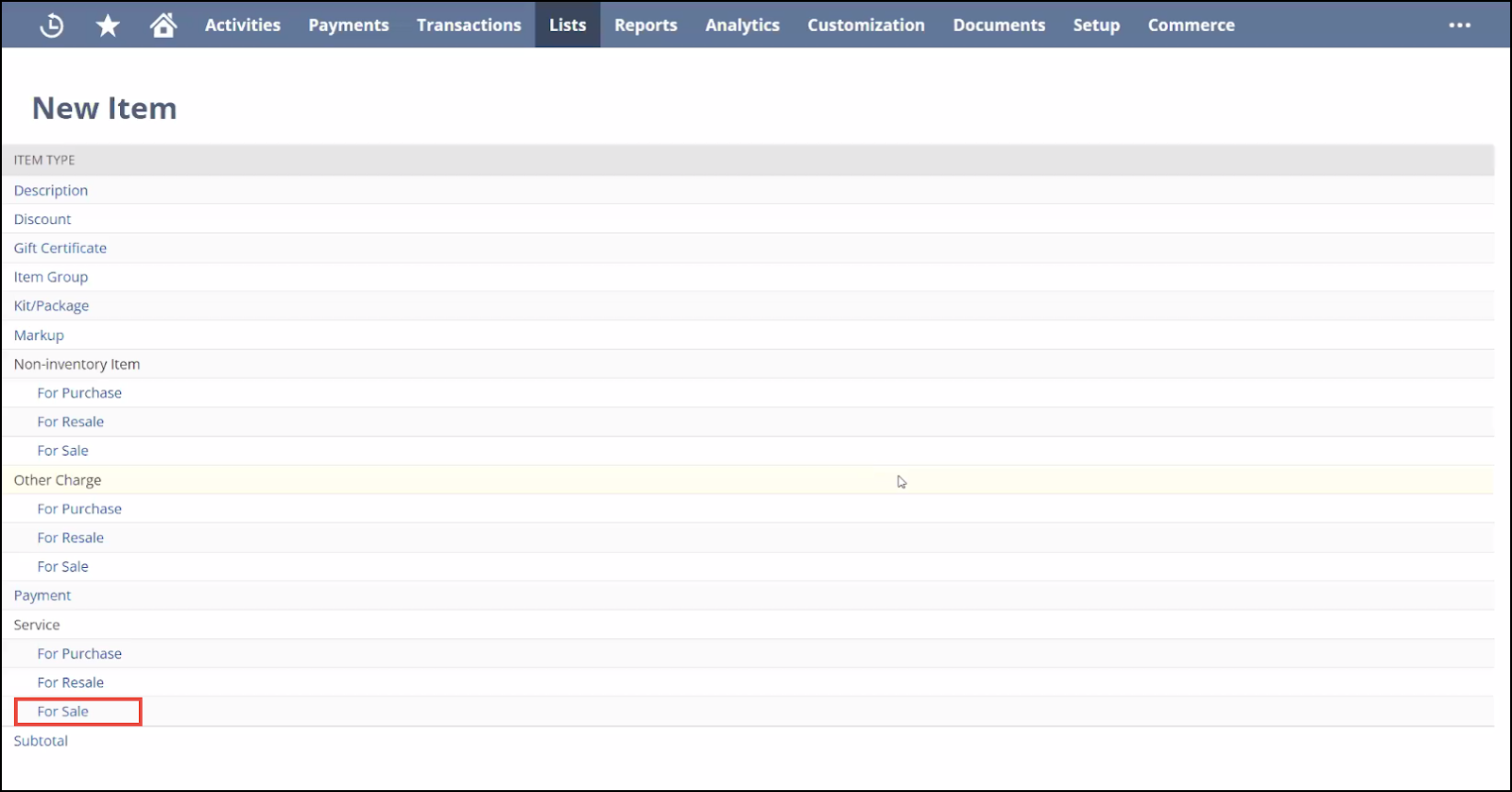
3. Select Service > For Sale.
The Service for Sale form is displayed.
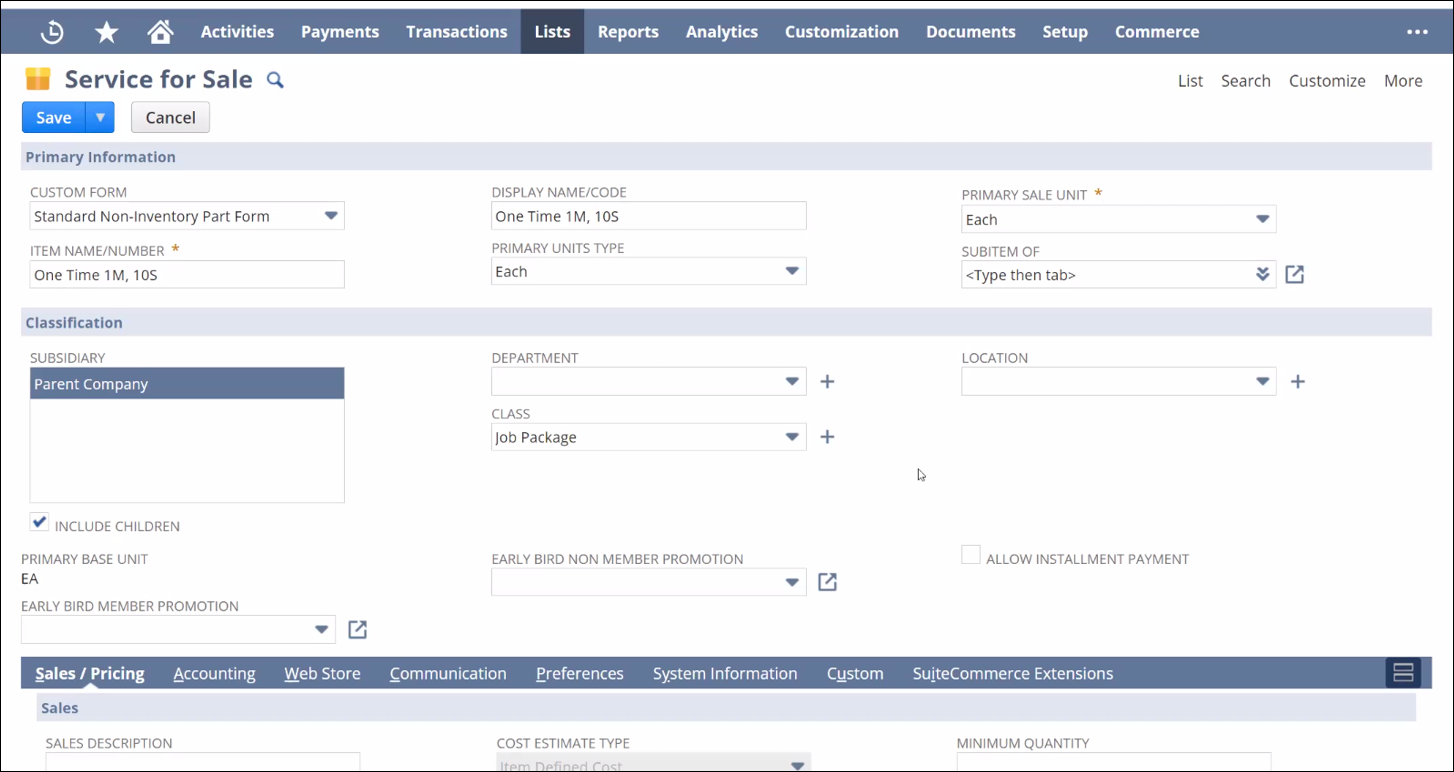
For more information, please refer to the following sections:
4. Click Save.
The item is saved.
Primary Information
The Primary Information section within the Service for Sale form allows you to get the essential details regarding the service in the associated fields.

Please refer to the table below for field names and their description.
Note: All the fields with an asterisk (*) are mandatory.
|
Field
|
Description
|
|
CUSTOM FORM
|
Preferred option to customize the Service form
|
|
ITEM NAME/NUMBER
|
Unique name of item/service
|
|
DISPLAY NAME/CODE
|
Label given to the item for display on the web
|
|
PRIMARY UNITS TYPE
|
Common unit type of items used for stocking
|
|
PRIMARY SALE UNIT TYPE
|
Common unit type of items used for selling
Note: By default, primary Sale Unit Type is auto-populated when a value is chosen in the Primary Units type.
|
|
SUBITEM OF
|
Item is a subcomponent of the selected category
|
Classification
The Classification section within the Service for Sale form allows you to configure the category to which the item belongs.
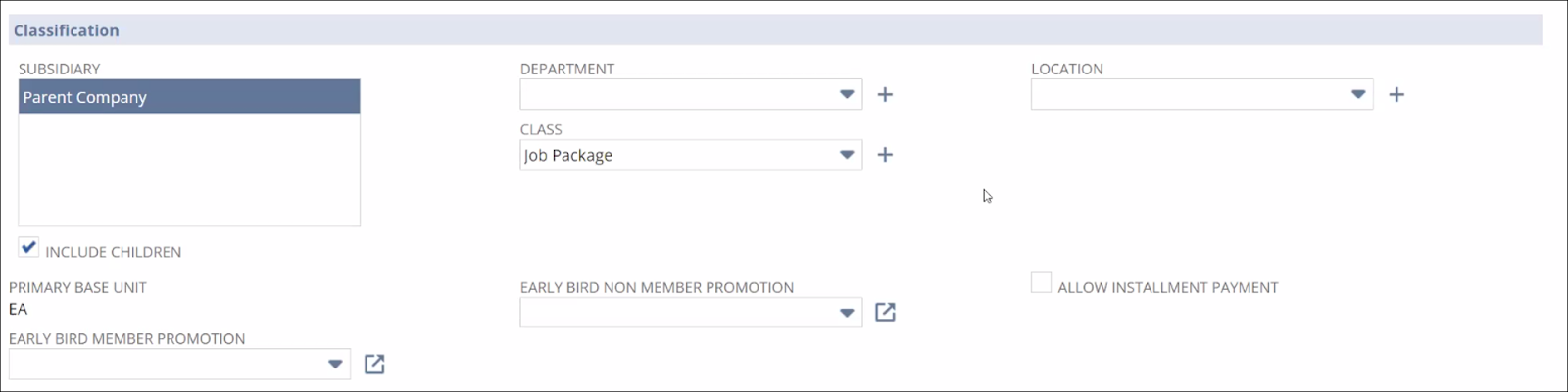
Please refer to the table below for field names and their descriptions.
Note: All the fields with an asterisk (*) are mandatory.
|
Field
|
Description
|
|
SUBSIDIARY
|
Owner company of the Service item. By default, the parent company is assigned the ownership.
|
|
INCLUDE CHILDREN
|
Whether or not to include the associated children or subordinate components
|
|
PRIMARY BASE UNIT
|
Common unit type used for item stocking
|
|
EARLY BIRD MEMBER PROMOTION
|
Special benefits that are offered as a promotion when this item is selected before the scheduled time.
|
|
DEPARTMENT
|
Name of the department the item is associated with
|
|
CLASS
|
Category of the associated item
|
|
LOCATION
|
Locations where the item is applicable
|
|
ALLOW INSTALLMENT PAYMENT
|
Enable payments through installments
|
Sales/ Pricing
The Sales/Pricing section within the Service for Sale form allows you to define the sales and monetary parts of the item.
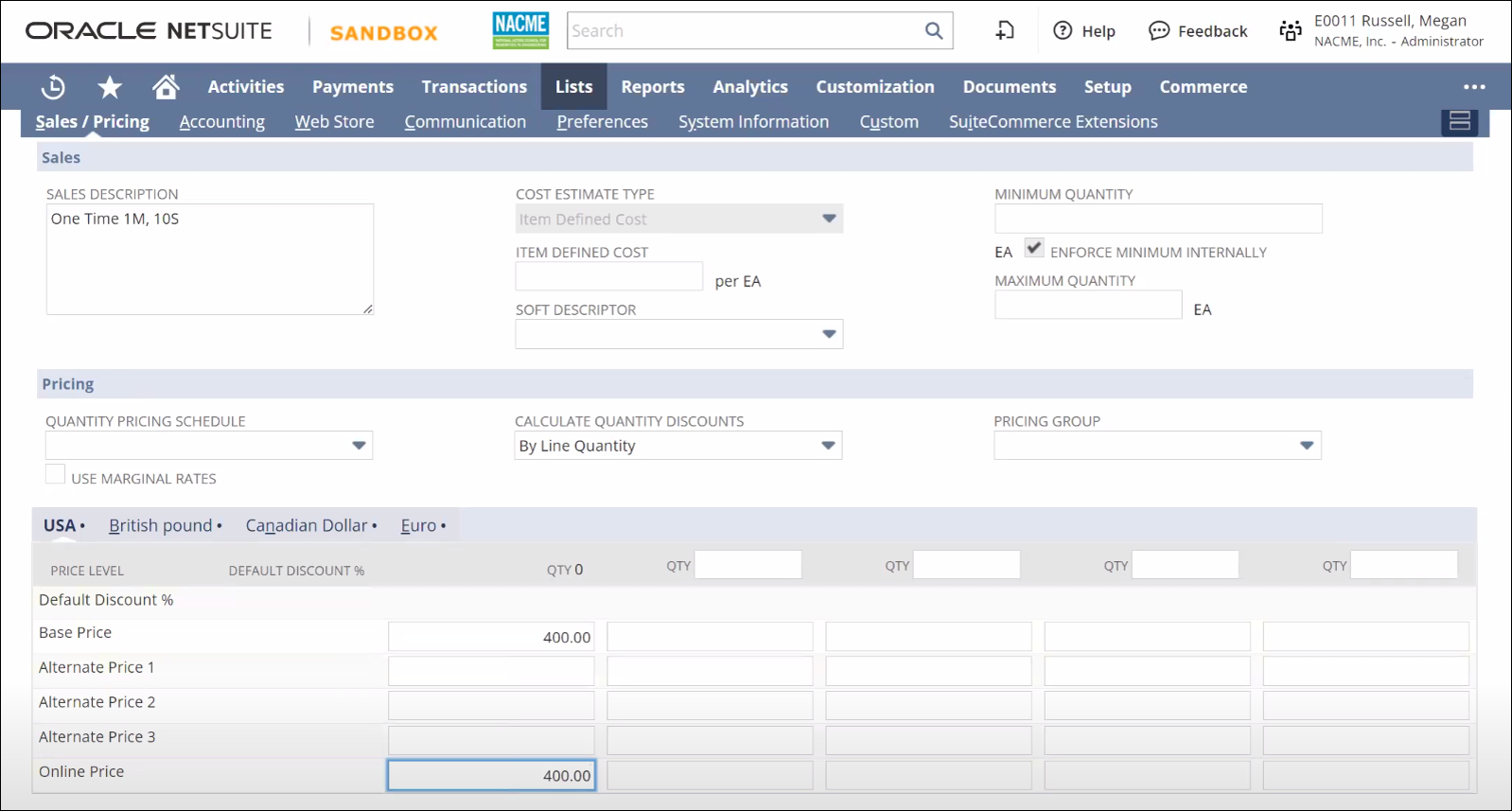
Please refer to the table below for field names and their description.
Note: All the fields with an asterisk (*) are mandatory.
|
Field
|
Description
|
|
SALES DESCRIPTION
|
Description of the item for selling purposes
|
|
COST ESTIMATE TYPE
|
Method used to estimate the cost
|
|
ITEM DEFINED COST
|
User-defined amount
For more information, please refer to NetSuite Item Defined Cost
|
|
SOFT DESCRIPTOR
|
Card name to be displayed on the bill For more information, please refer to NetSuite Soft Descriptor.
|
|
MINIMUM QUANTITY
|
Least amount of quantity for order
|
|
EA ENFORCE MINIMUM INTERNALLY
|
Whether or not to apply minimum quantity to sales order
|
|
QUANTITY PRICING SCHEDULE
|
Associated quantity pricing of the item
For more information, please refer to NetSuite Quantity Pricing Schedule
|
|
CALCULATE QUANTITY DISCOUNTS
|
Process to determine the pricing for quantity discounts
For more information, please refer to NetSuite Calculate Quantity Discounts
|
|
PRICING GROUP
|
Specific price levels for item groups. For more information, refer to NetSuite Pricing Group
|
|
USE MARGINAL RATES
|
Marginal discount rate applicable to each item
|
|
BASE PRICE
|
Standard cost of the item
|
|
ONLINE PRICE
|
Specific cost of the item set for online transaction
|
Accounting
The Accounting section in the Service for Sales form allows you to configure the tax and other NetSuite accounting values for the item.
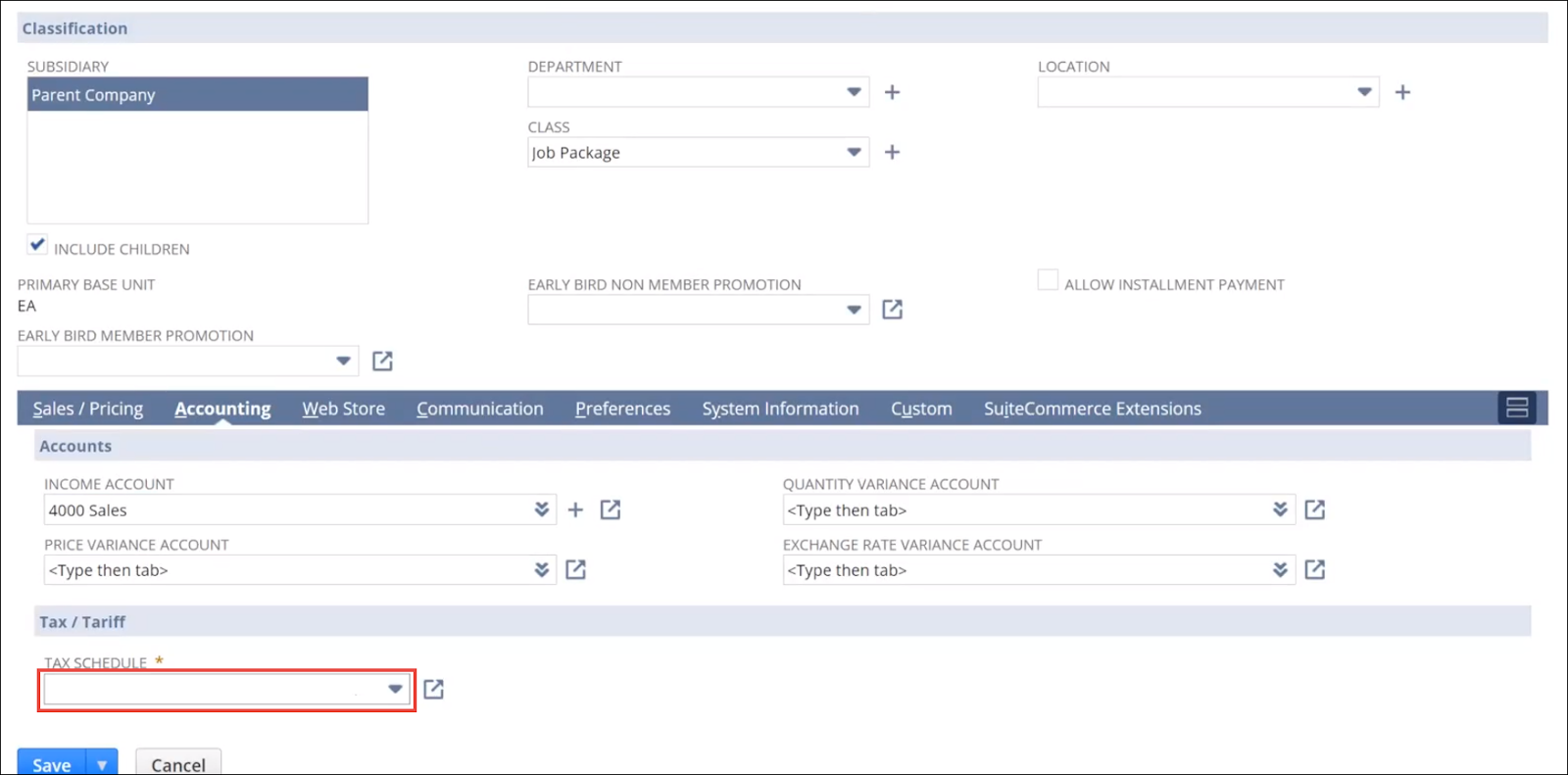
Here, set the TAX SCHEDULE field to No Tax.
Web Store
The Web Store section in the Service for Sales form allows you to configure the display of the item on the web page.
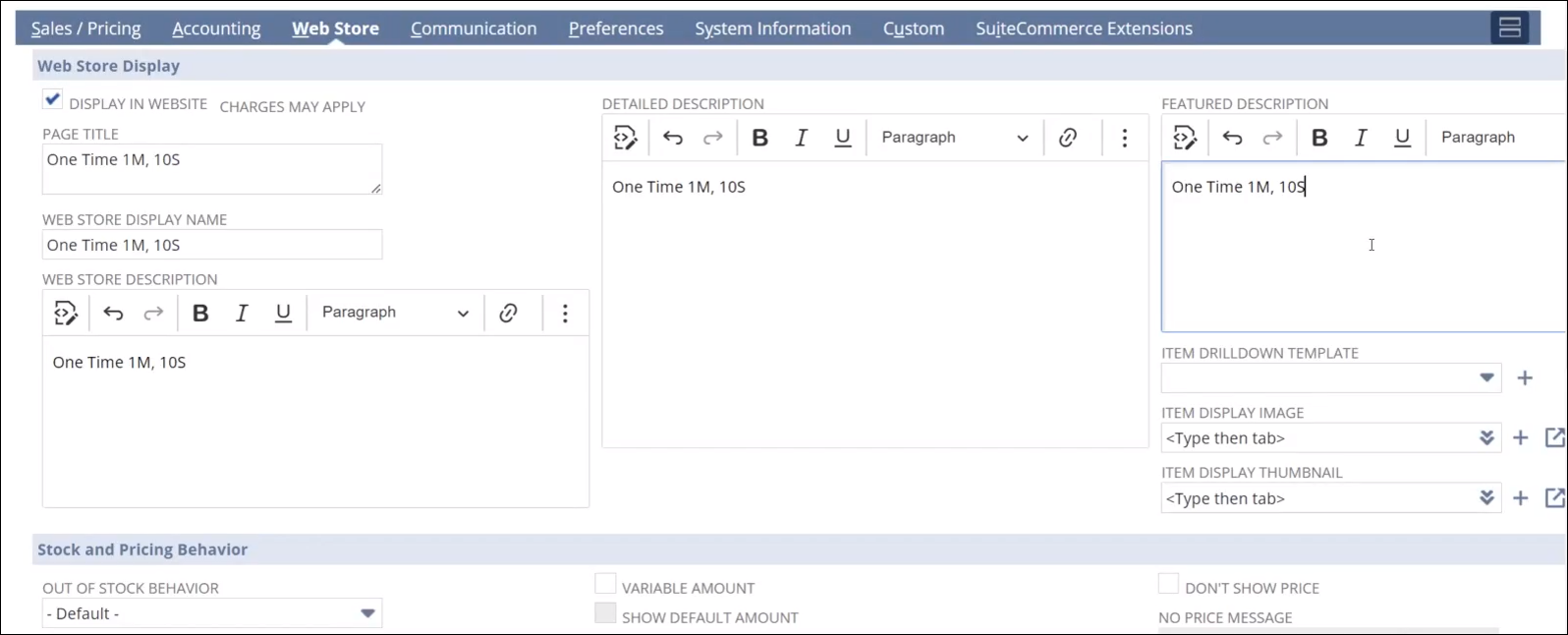
Please refer to the table below for field names and their descriptions.
Note: All the fields with an asterisk (*) are mandatory.
|
Field
|
Description
|
|
DISPLAY IN WEBSITE
|
Whether or not to display the item on the website
|
|
PAGE TITLE
|
Name of the page
|
|
WEB STORE DISPLAY NAME
|
Name to be displayed on the web store
|
|
WEB STORE DESCRIPTION
|
Detailed description of the item displayed on the web store
|
|
FEATURED DESCRIPTION
|
Detailed description of a specific feature or element of the item
|
Custom
The Custom section within the Service for Sale form allows you to customize the item to be displayed on the website.
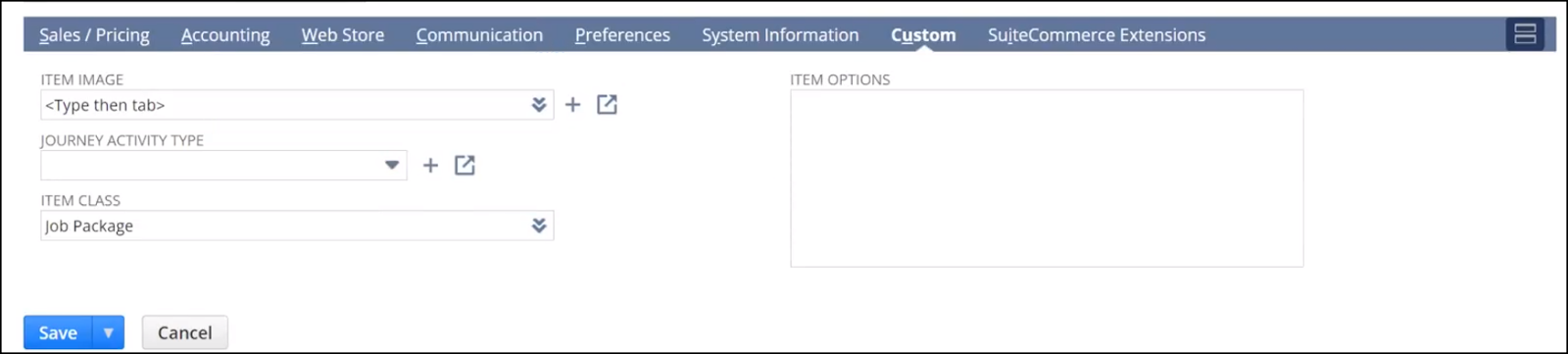
Please refer to the table below for field names and their description.
Note: All the fields with an asterisk (*) are mandatory.
|
Field
|
Description
|
|
ITEM IMAGE
|
Image of the item to be displayed on the website
|
|
JOURNEY ACTIVITY TYPE
|
Type of item journey activity
|
|
ITEM CLASS
|
Category associated with the item
Note that the value to be set here is No Tax.
|
|
ITEM OPTION
|
Options for customizing the item
|
|
FEATURED DESCRIPTION
|
Detailed description of a specific feature or element of the item
|