Home
Home
How to Add Spending Category?
The Spending Category section enables the categorization of your business expenses. You can add a new scholarship spending category.
1. Navigate to  > Scholarships > Setup > and click Spending Category.
> Scholarships > Setup > and click Spending Category.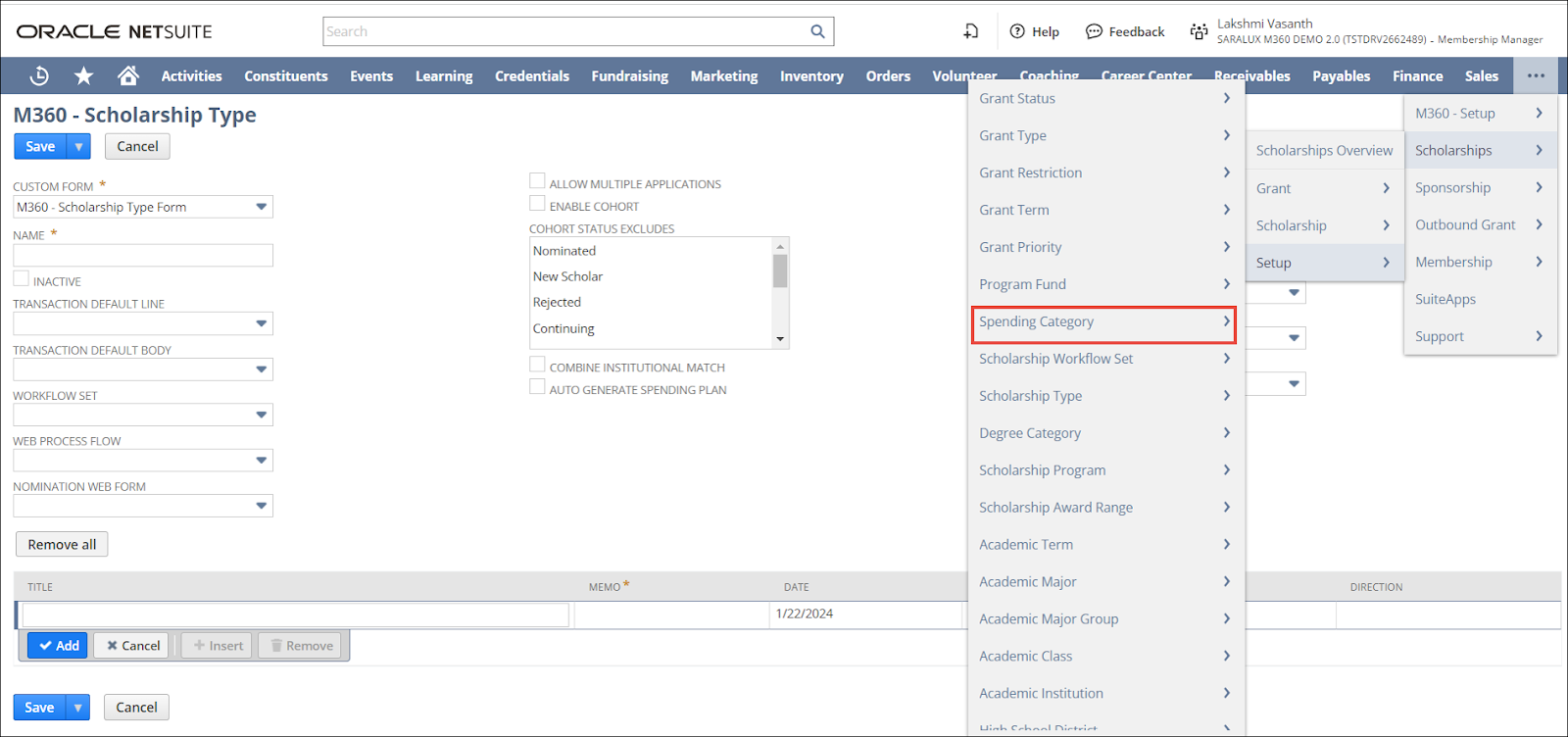
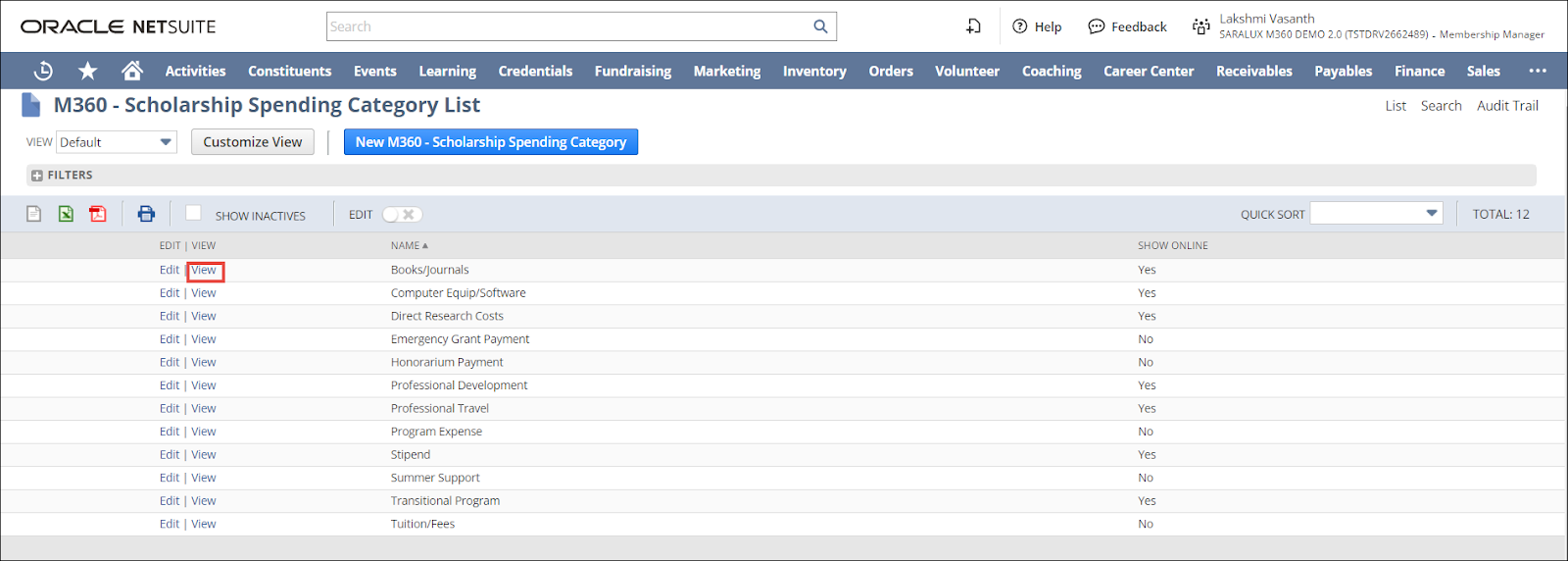
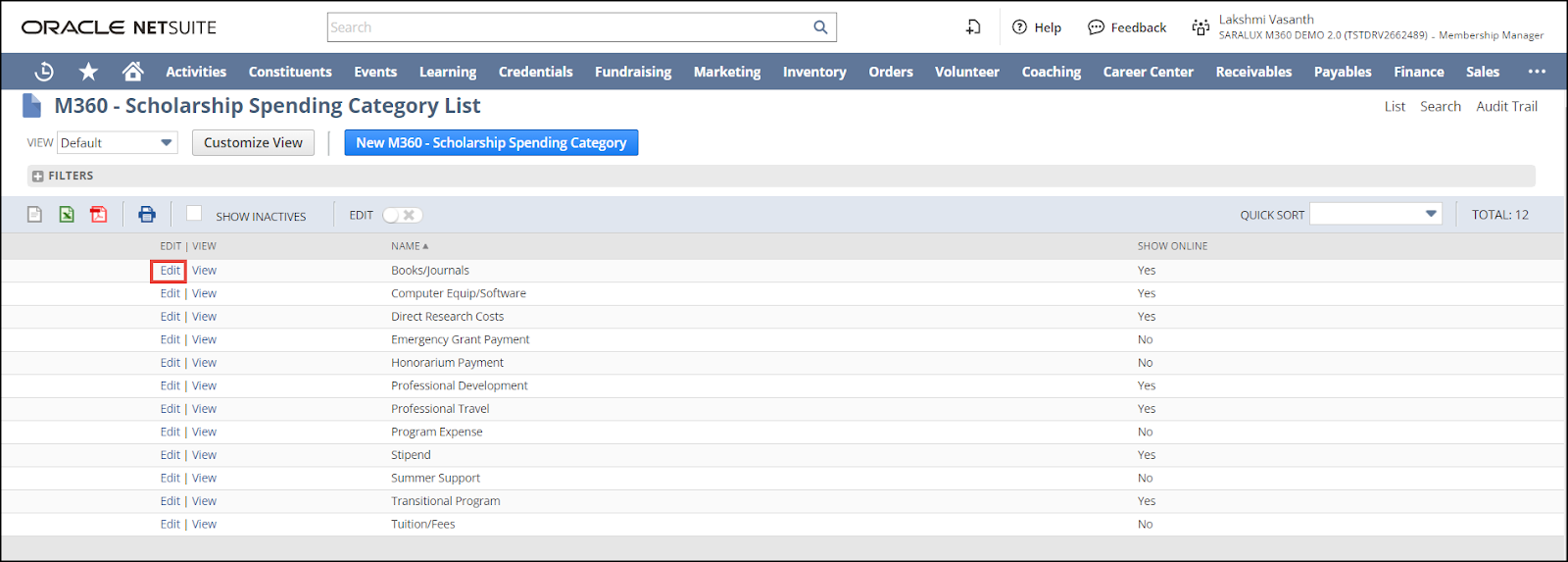
The M360 - Scholarship Spending Category List page is displayed.
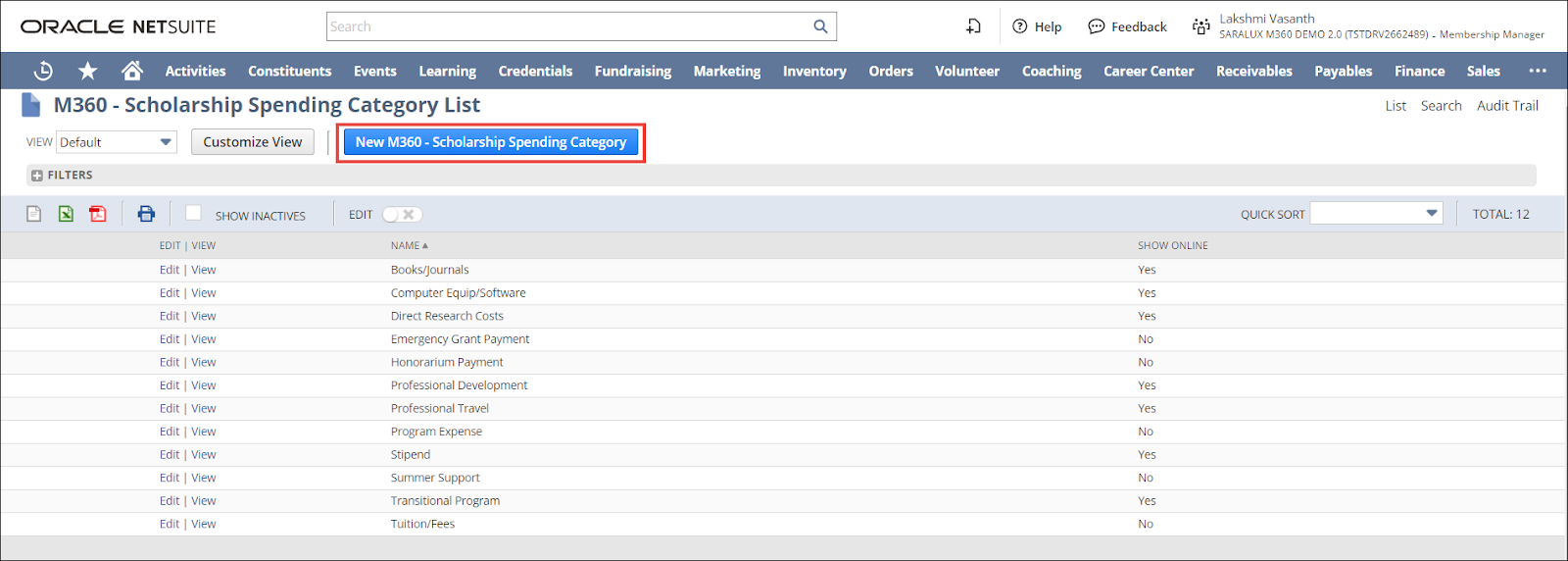
2. Click New M360 - Scholarship Spending Category.
The New M360 - Scholarship Spending Category page is displayed.
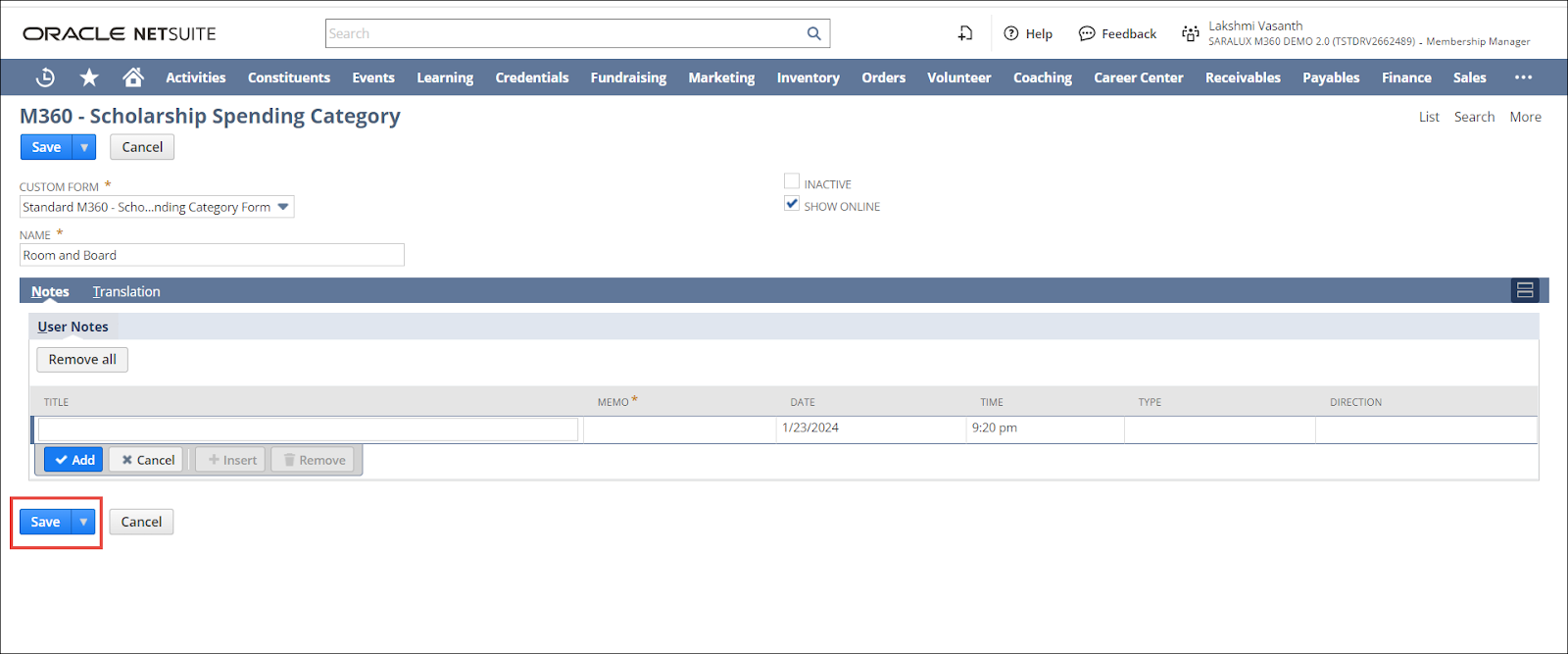
3. Enter/ enable the values in the required fields. Please refer to the following table for field names and field descriptions.
|
Field
|
Description
|
|
CUSTOM FORM
|
Preferred form option available to customize the Scholarship Spending Category form
By default, the M360-Scholarship Spending Category Form is selected.
|
|
NAME
|
Name of the category for scholarship spending
|
|
INACTIVE
|
Whether to deactivate this scholarship spending category
|
|
SHOW ONLINE
|
Whether to show this scholarship spending category online
|
4. Click Save.
The scholarship spending category is created.
Note:
-
To edit a program fund, navigate to > Scholarships > Setup > Spending Category > M360 - Scholarship Spending Category List page and click Edit in the row of the spending category you wish to modify.
-
To view the details of a grant priority, navigate to > Scholarships > Setup > Spending Category > M360 - Scholarship Spending Category List page and click View in the row of the spending category you wish to view in detail.