Home
Home
How to Bulk Renew Memberships?
You can easily renew multiple memberships at a time.
1. Navigate to Membership > Manage Memberships > Bulk Renewal.

The Bulk Renewal form is displayed.
Note: All fields with an asterisk (*) are mandatory.
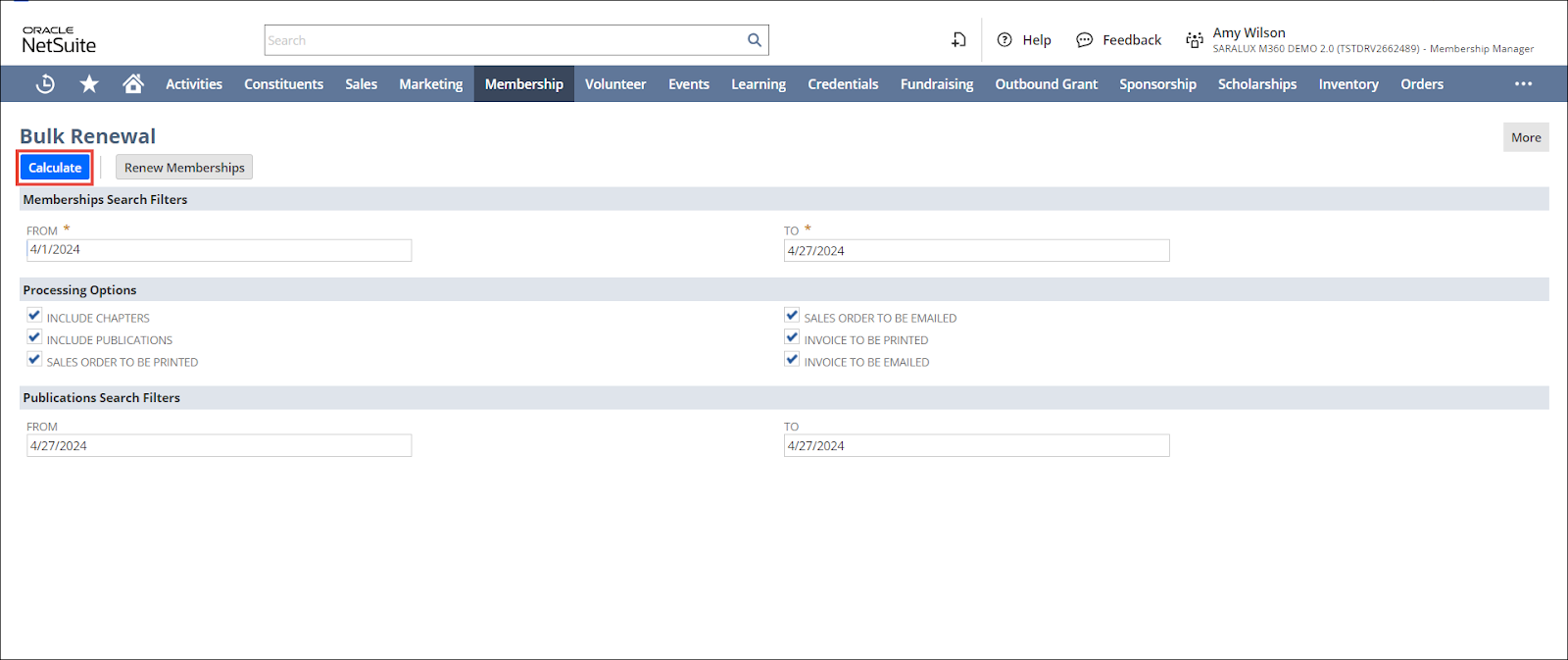
2. Select the date range for membership search using the FROM and TO dropdown calendars under the Membership Search Filters section.
3. Select the required criteria for processing the bulk renewal of memberships under the Processing Options section by checking the appropriate boxes.
Please refer to the following table for the field names and their descriptions.
|
Field
|
Description
|
|
INCLUDE CHAPTERS
|
Whether or not chapters need to be included within the memberships for bulk renewal
|
|
INCLUDE PUBLICATIONS
|
Whether or not publications need to be included within the memberships for bulk renewal
|
|
SALES ORDER TO BE PRINTED
|
Whether or not the sales order within the memberships needs to be printed for bulk renewal
|
|
SALES ORDER TO BE EMAILED
|
Whether or not the sales order within the memberships needs to be emailed for bulk renewal
|
|
INVOICE TO BE PRINTED
|
Whether or not the invoice within the memberships needs to be printed for bulk renewal
|
|
INVOICE TO BE EMAILED
|
Whether or not the invoice within the memberships needs to be printed for bulk renewal
|
4. Select the date range of the publications using the FROM and TO dropdown calendars under the Publications Search Filters section. This helps you further narrow down your membership search results.
5. Click Calculate.
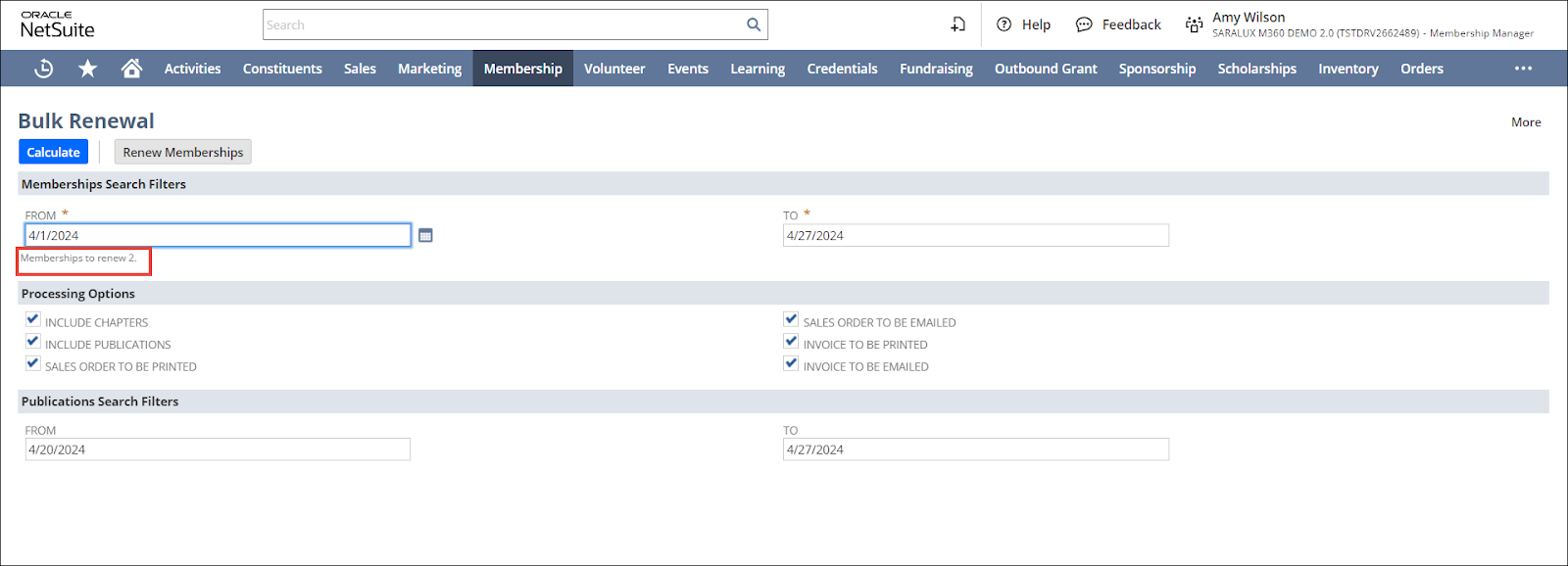
The number of memberships meeting the search criteria is displayed.
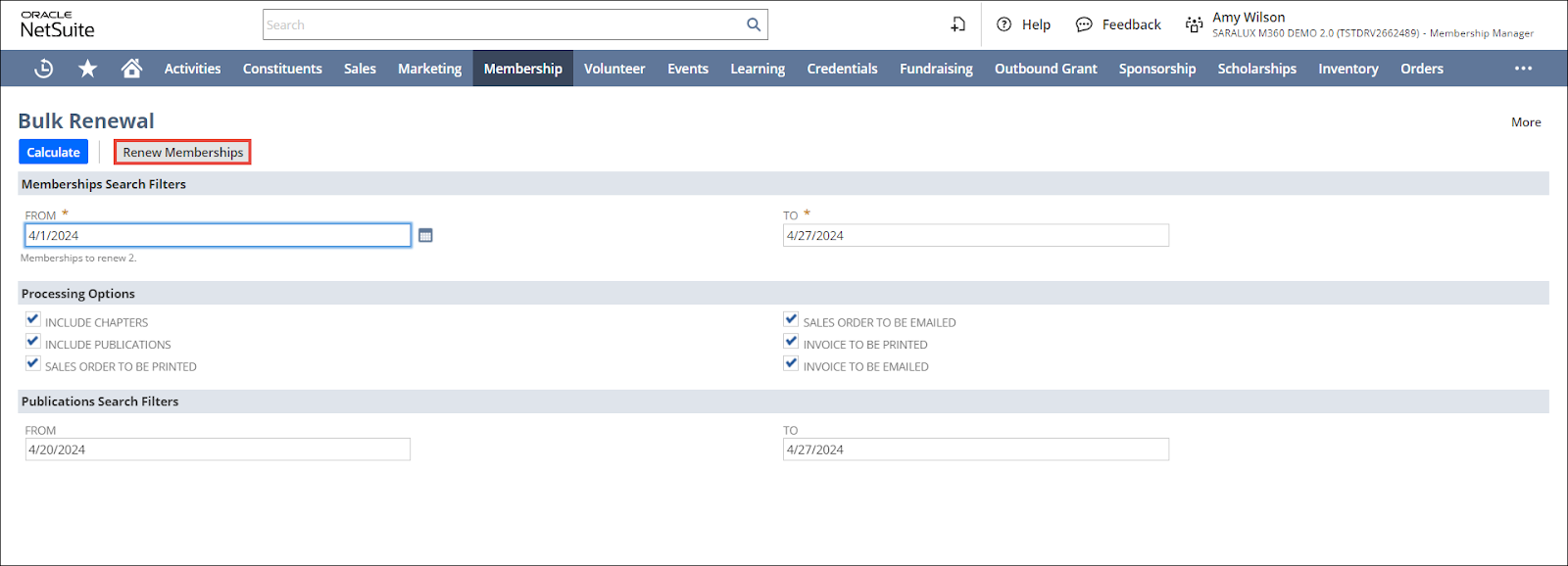
6. Click Renew Memberships.
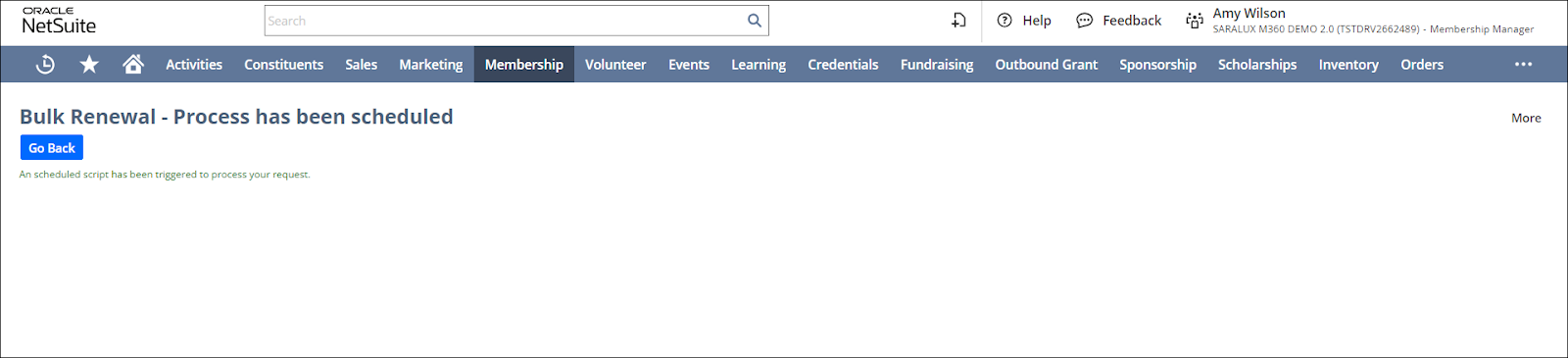
The notification about the scheduling of the bulk renewal process is displayed.