
 Home
Home
How to Add a Scholarship Award Batch?
You can create scholarship award batches to manage the allocation of scholarships to multiple candidates efficiently.
1. On the M360 - Scholarship Award Batch List page, click New M360 - Scholarship Award Batch.
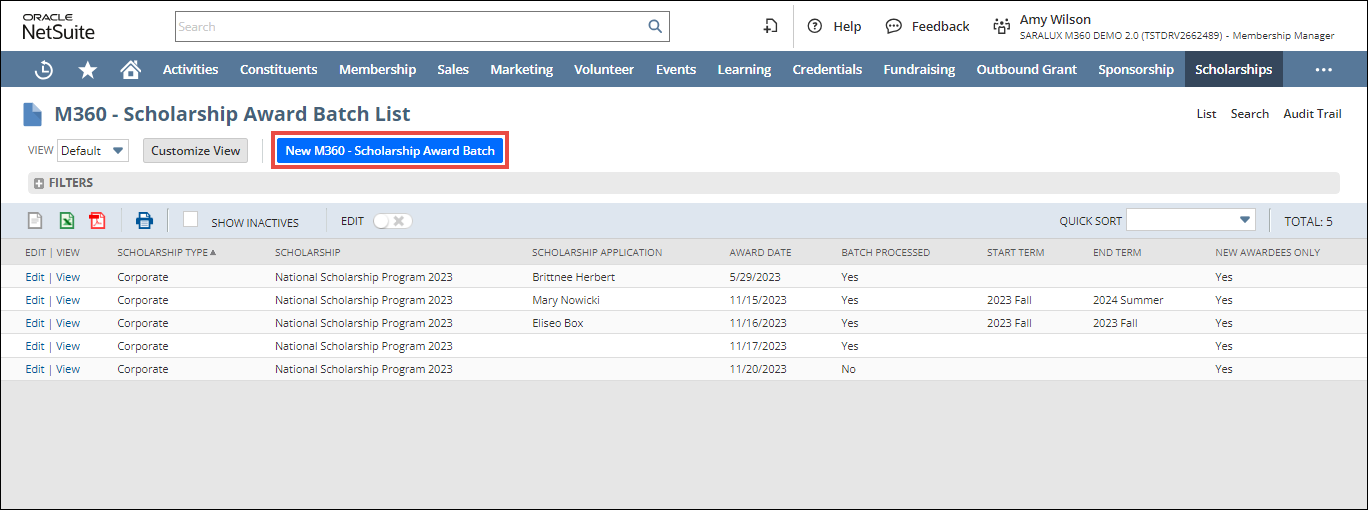
The M360 - Scholarship Award Batch form is displayed.
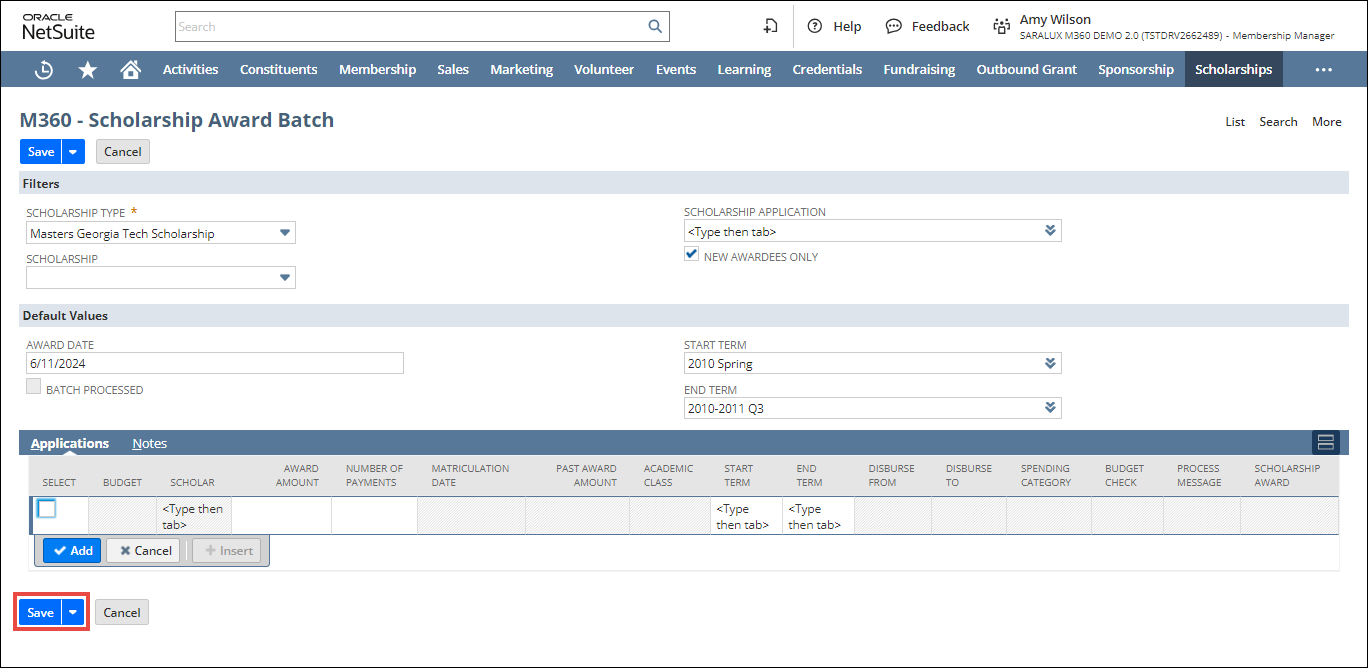
2. Enter or select the required values in the fields. For more information, please refer to the following sections:
3. Click Save.
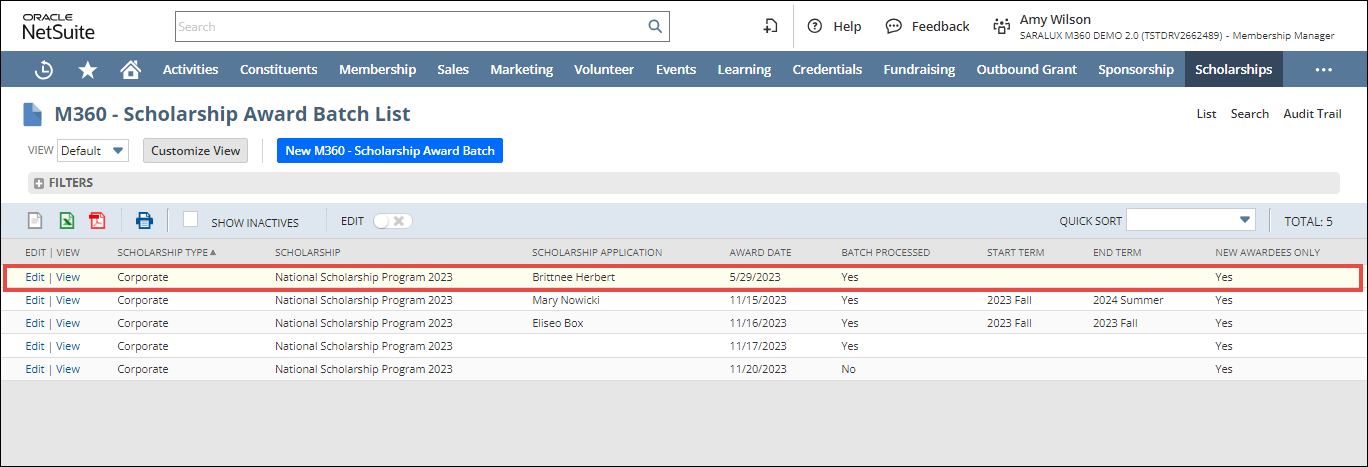
The Scholarship Award Batch is added to the list.
Filters
The Filters section within the Award Scholarship form allows you to configure the criteria required to select the appropriate scholarship candidates.

Please refer to the table below for field names and their descriptions.
Note: All the fields with an asterisk (*) are mandatory.
|
Field
|
Description
|
|
SCHOLARSHIP TYPE
|
Type of scholarship
|
|
SCHOLARSHIP
|
Specific scholarship within the selected type
|
|
SCHOLARSHIP APPLICATION
|
Associated scholarship application
|
|
NEW AWARDEES ONLY
|
Whether this scholarship award batch includes only new awardees
|
Default Values
The Default Values section within the Award Scholarship form allows you to set the default values for the scholarship batch.

Please refer to the table below for field names and their descriptions.
Note: All the fields with an asterisk (*) are mandatory.
|
Field
|
Description
|
|
AWARD DATE
|
Date of allocating the scholarship
|
|
BATCH PROCESSED
|
Whether the batch is processed
|
|
START TERM
|
Beginning of the scholarship period
|
|
END TERM
|
Ending of the scholarship period
|
Applications
The Application section within the Award Scholarship form allows you to configure the number of applications allowed in a batch, total budget allowed, and other information.

Please refer to the table below for field names and their descriptions.
Note: All the fields with an asterisk (*) are mandatory.
|
Field
|
Description
|
|
SELECT
|
|
|
BUDGET
|
Financial budget allocated for the scholarship batch
Note: This is an auto-generated field based on the scholarship selected.
|
|
SCHOLAR
|
Note: This is an auto-generated field based on the scholarship selected.
|
|
AWARD AMOUNT
|
Amount of scholarship
|
|
NUMBER OF PAYMENTS
|
Total installments of the award
|
|
MATRICULATION DATE
|
Date of enrollment of the candidate
Note: This is an auto-generated field based on the candidate’s scholarship application.
|
|
PAST AWARD AMOUNT
|
Previous scholarship amount awarded to the candidate
Note: This is an auto-generated field based on the candidate’s scholarship application.
|
|
ACADEMIC CLASS
|
Current class of the candidate
Note: This is an auto-generated field based on the candidate’s scholarship application.
|
|
START TERM
|
Beginning of the scholarship period
|
|
END TERM
|
Ending of the scholarship period
|
|
DISBURSE FROM
|
Note: This is an auto-generated field based on the selected scholarship.
|
|
DISBURSE TO
|
Note: This is an auto-generated field based on the selected scholarship.
|
|
SPENDING CATEGORY
|
Group to which the spending belongs
Note: This is an auto-generated field based on the selected scholarship.
|
|
BUDGET CHECK
|
Note: This is an auto-generated field based on the selected scholarship.
|
|
PROCESS MESSAGE
|
Note: This is an auto-generated field based on the selected scholarship.
|
|
SCHOLARSHIP AWARD
|
Note: This is an auto-generated field based on the selected scholarship.
|