
 Home
Home
How to Set Up an Outbound Grant Budget?
You can set up a budget for the outbound grant to allocate funds effectively by following the steps below.
1. Navigate to Mem360 Dashboard and enter M360 - Outbound Grant Budget in the Search field.
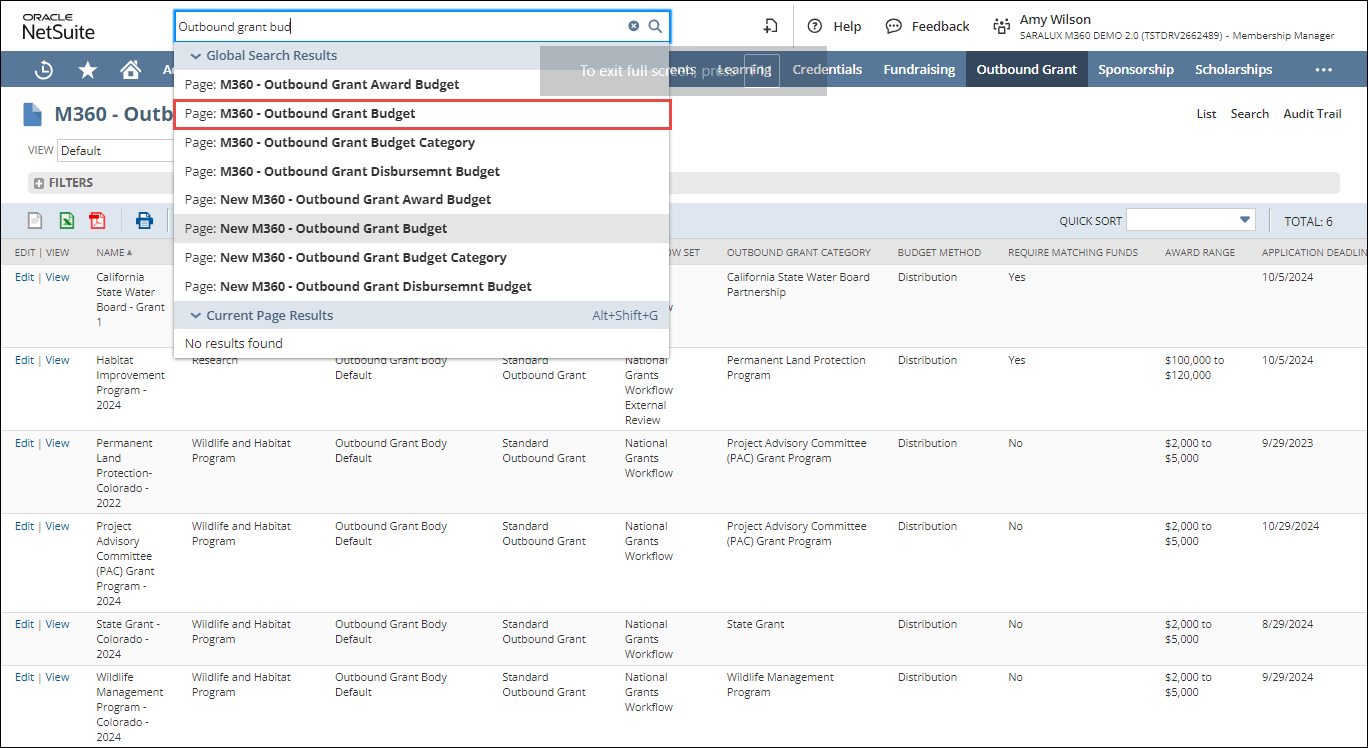
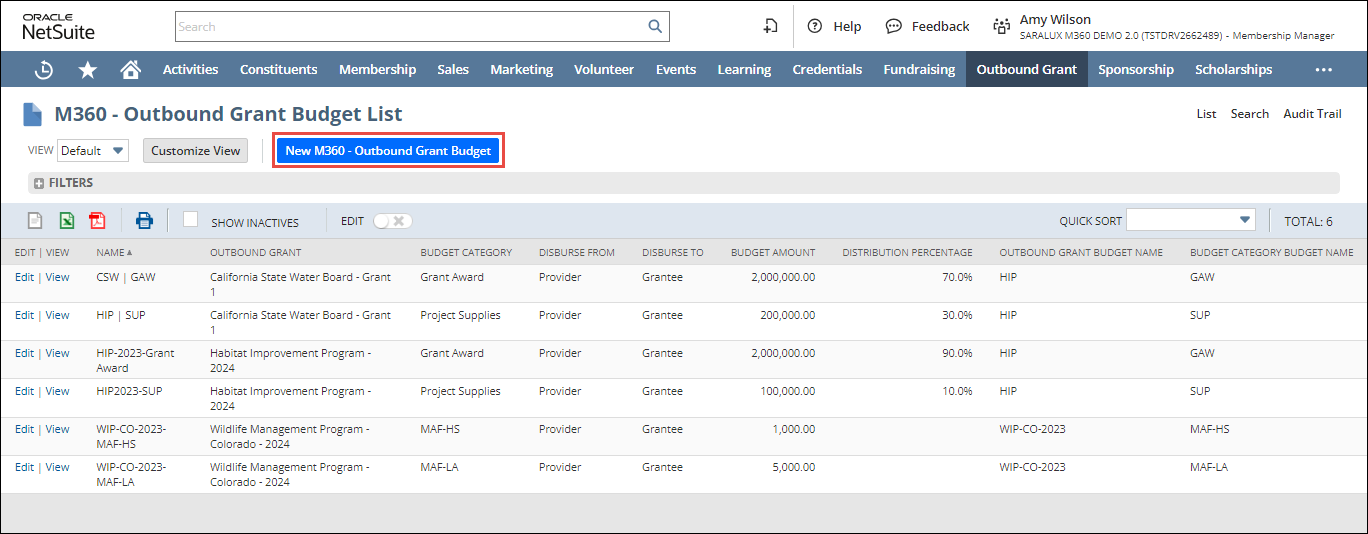
The M360 - Outbound Grant Budget List page is displayed.
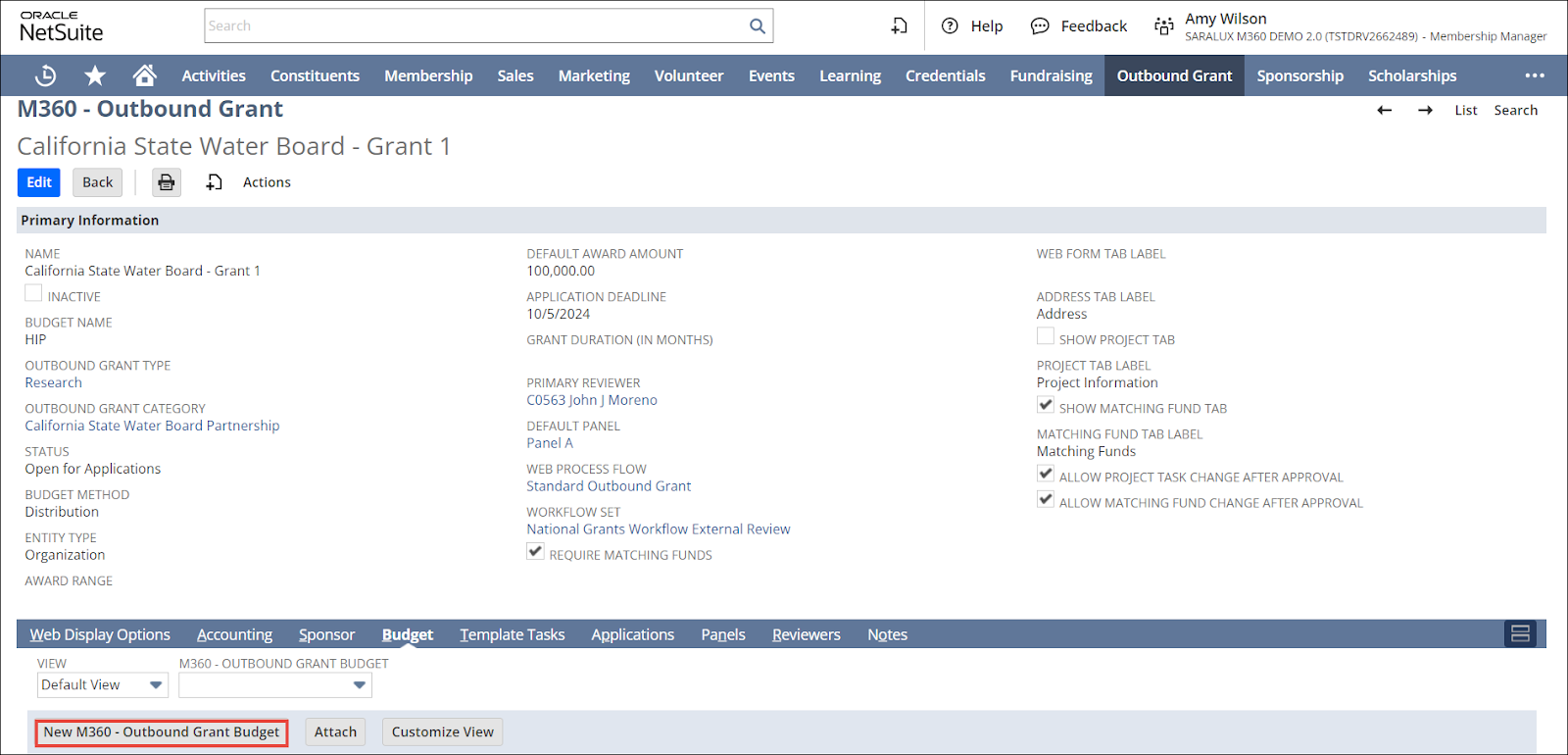
Note: You can alternatively create a new budget from an Outbound Grant page by navigating to Budget and clicking New M360 - Outbound Grant Budget as illustrated in the image below.
2. Click New M360 - Outbound Grant Budget.
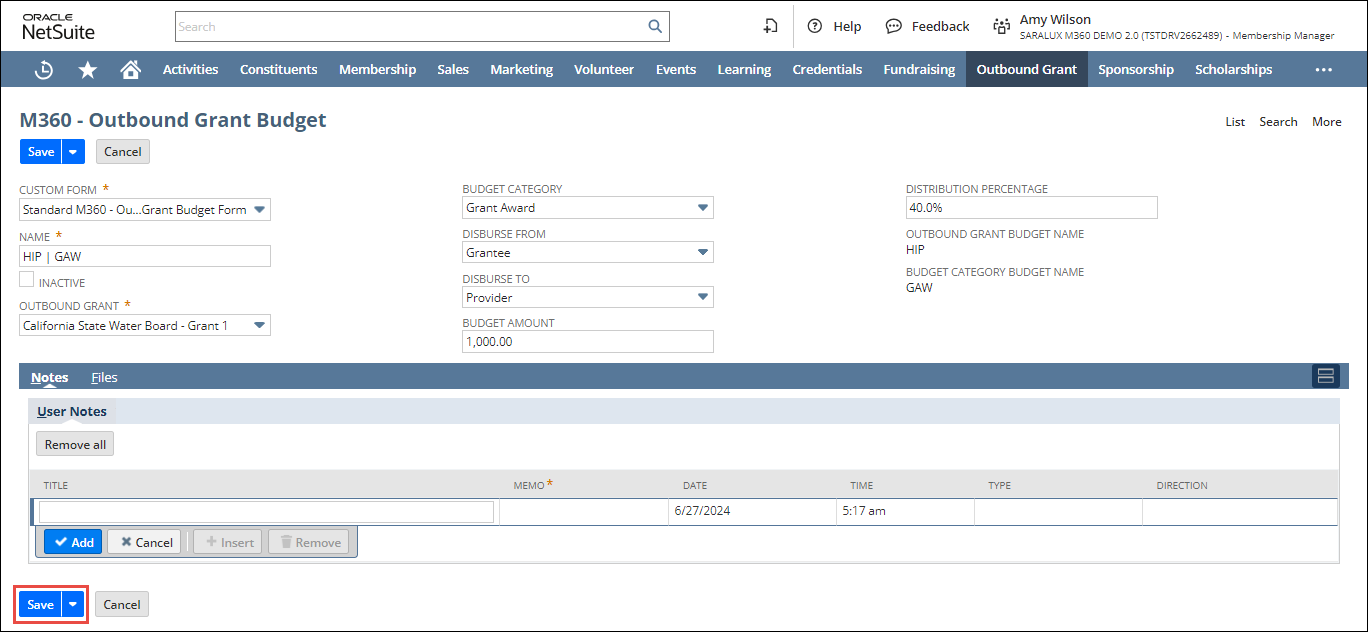
3. Enter or select the values of the fields as required.
Please refer to the table below for the field names and descriptions.
Note: All the fields with an asterisk (*) are mandatory.
|
Field
|
Description
|
|
CUSTOM FORM
|
Preferred options available to customize the Outbound Grant Budget form
By default, the M360 - Outbound Grant Budget Form is selected.
|
|
NAME
|
Name of the outbound grant budget
|
|
INACTIVE
|
Deactivates the outbound grant budget
|
|
OUTBOUND GRANT
|
Outbound grant associated with the grant budget
|
|
BUDGET CATEGORY
|
Category to which the budget belongs based on its funding method
|
|
DISBURSE FROM
|
Source from which the outbound grant budget is distributed
|
|
DISBURSE TO
|
Recipient to which the outbound grant budget is allocated
|
|
BUDGET AMOUNT
|
Specific amount allotted for the outbound grant budget
|
|
DISTRIBUTION PERCENTAGE
|
Specific percentage of the budget allocated to the associated outbound grant budget for distribution
|
|
OUTBOUND GRANT BUDGET NAME
|
Unique identifier corresponding to the outbound grant budget name
This field is autopopulated upon the selection of OUTBOUND GRANT.
|
|
BUDGET CATEGORY BUDGET NAME
|
Unique identifier associated with the name of the budget category
|
4. Click Save.
The outbound grant budget is successfully created.