
 Home
Home
How to Add a Venue?
You can add a venue by following the steps below.
1. Navigate to  > Coaching > Venue > and click Venue.
> Coaching > Venue > and click Venue.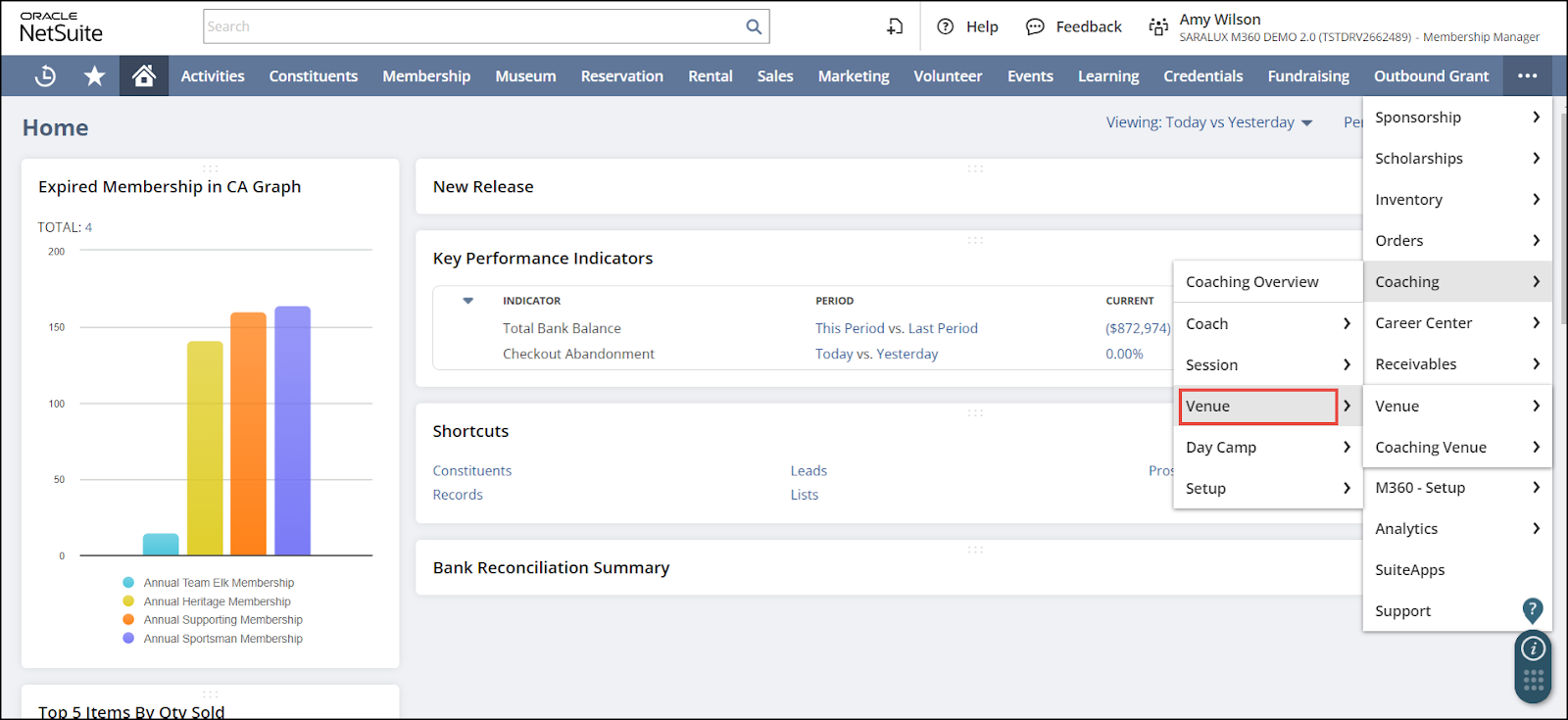
The M360 - Venue List page is displayed.
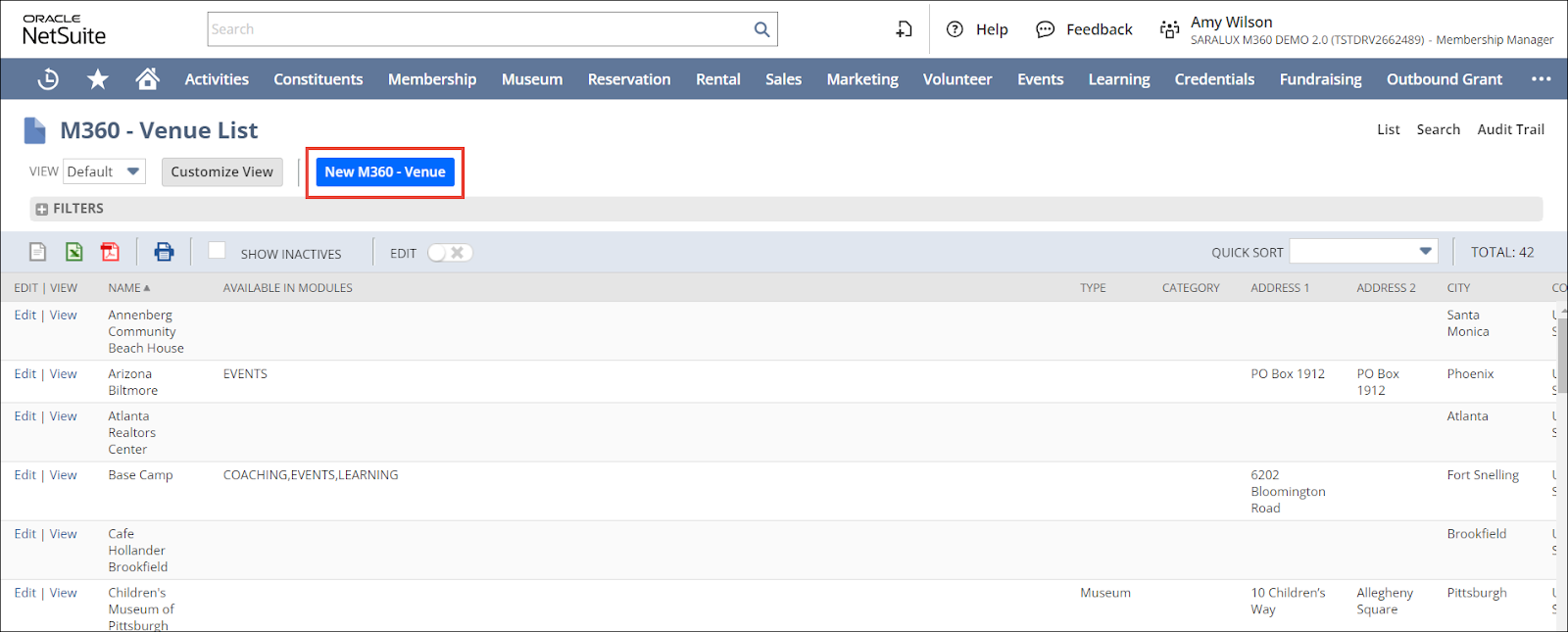
2. Click New M360 - Venue.
The M360 - Venue form is displayed.
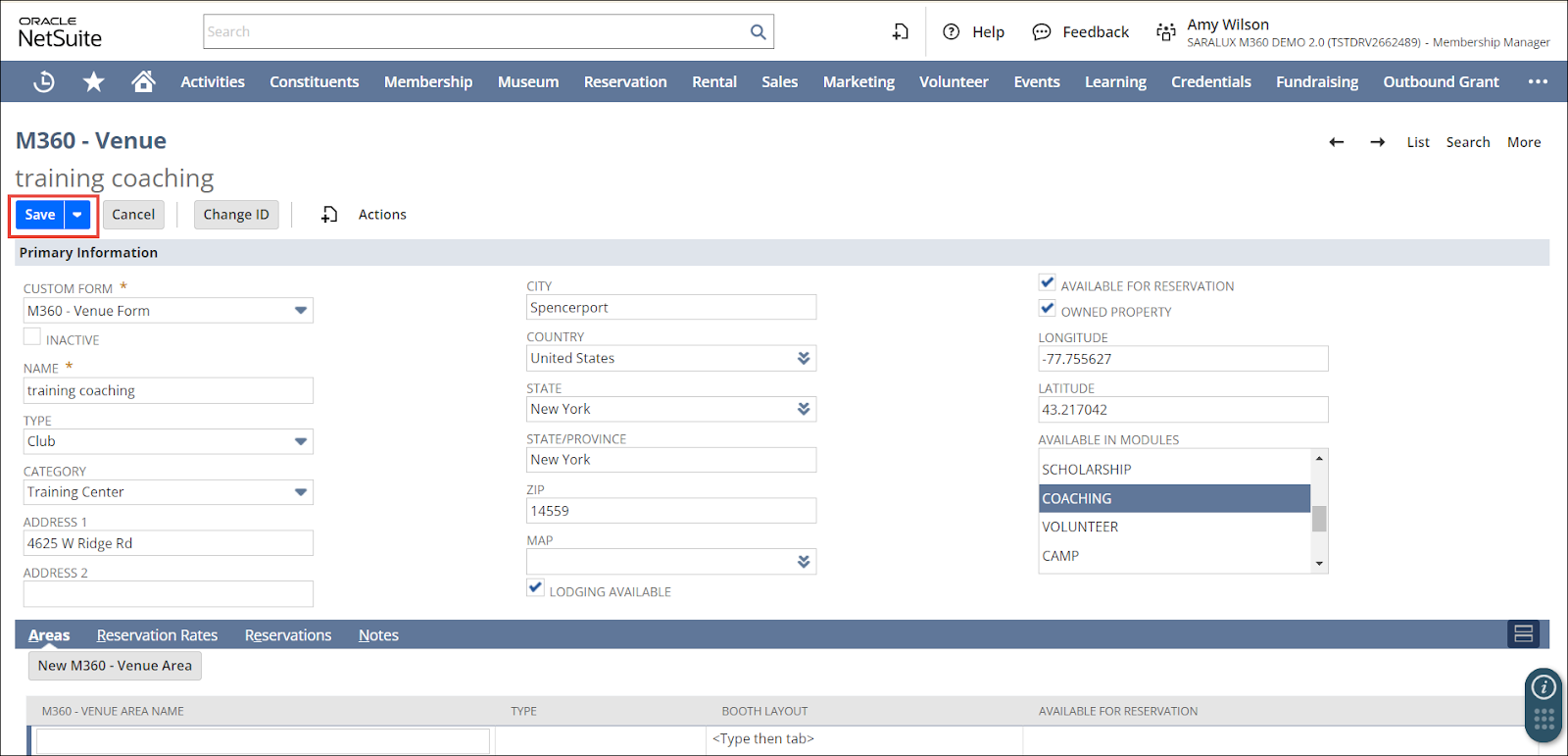
3. Enter or select the required values in the fields.
Please refer to the following table for field names and their descriptions.
Note: All the fields with an asterisk (*) are mandatory.
|
Field
|
Description
|
|
CUSTOM FORM
|
Specific form customized to collect information regarding the venue
By default, the M360 - Venue Form is selected.
|
|
INACTIVE
|
Whether to disable this venue
|
|
NAME
|
Name of the venue
|
|
TYPE
|
Type of venue to which this venue belongs
|
|
CATEGORY
|
Category to which the venue belongs
Note: This is an auto-populated field when VENUE is selected.
|
|
ADDRESS 1
|
Primary address of the venue
|
|
ADDRESS 2
|
Alternative address of the venue
|
|
CITY
|
City of the venue
|
|
COUNTRY
|
Country of the venue
|
|
STATE
|
State of the venue
|
|
STATE/PROVINCE
|
Province of the venue
|
|
ZIP CODE
|
Zip code of the venue
|
|
MAP
|
Visual representation of the address on the map
|
|
LODGING AVAILABLE
|
Whether the venue provides a lodging facility
|
|
AVAILABLE FOR RESERVATION
|
Whether the venue is available for reservations
|
|
OWNED PROPERTY
|
Whether the venue is an owned property
|
|
LONGITUDE
|
Geographic coordinate representing the east-west position of the venue
|
|
LATITUDE
|
Geographic coordinate that represents its north-south position on the venue
|
|
AVAILABLE IN MODULES
|
Modules in which this venue is available
|
4. Click Save.
The venue is successfully saved.